
Imagine this scenario: You are a scaling business owner. You have recently hit a point of growth where you can no longer manage every single piece of operations yourself, so you have done the smart thing—you hired a high-performing Virtual Assistant (VA) or Operations Manager to take over the daily tasks. As your business expands, implementing Canva Workflows alongside your operational processes can help your team streamline content creation, maintain brand consistency, and collaborate more efficiently.
You hand over the brand assets, breathe a sigh of relief, and step back to focus on big-picture strategic planning.
Two weeks later, you open LinkedIn or check a client deliverable, only to see an asset featuring an outdated logo, an unapproved font face, or messaging that completely misses your core framework. Your heart sinks. You realize that instead of scaling, you have just decentralized your brand’s chaos.
When businesses scale, their tools must scale with them. For millions of organizations, Canva is the creative heartbeat of their operations. However, as we navigate 2026, a massive point of confusion has emerged among operations managers, business coaches, and founders.
Canva now has two completely different ecosystems that go by the term "workflows." If you are trying to clean up your operational silos, build internal trust, and implement airtight Standard Operating Procedures (SOPs), you must understand exactly which Canva workflow mechanism you need. Misinterpreting these features will cost you either valuable team hours or severe brand dilution.
In this deep-dive architectural guide, we will break down both sides of Canva's workflow universe, map out the technical realities of both setups, analyze the cost structures, and provide you with a definitive operational blueprint to optimize this tool for your expanding team.
Part 1: The Traditional Path — Canva Workflows' Approval (The Business Plan Feature)
For business owners who are struggling with basic execution control—ensuring that what their team creates matches what the owner intends—the solution lies in Canva Approval Workflows.
This feature lives firmly within the human side of your operations (your People OS). It is a structural governance layer designed to stop errors before they reach the public eye.
How the Governance Engine Works
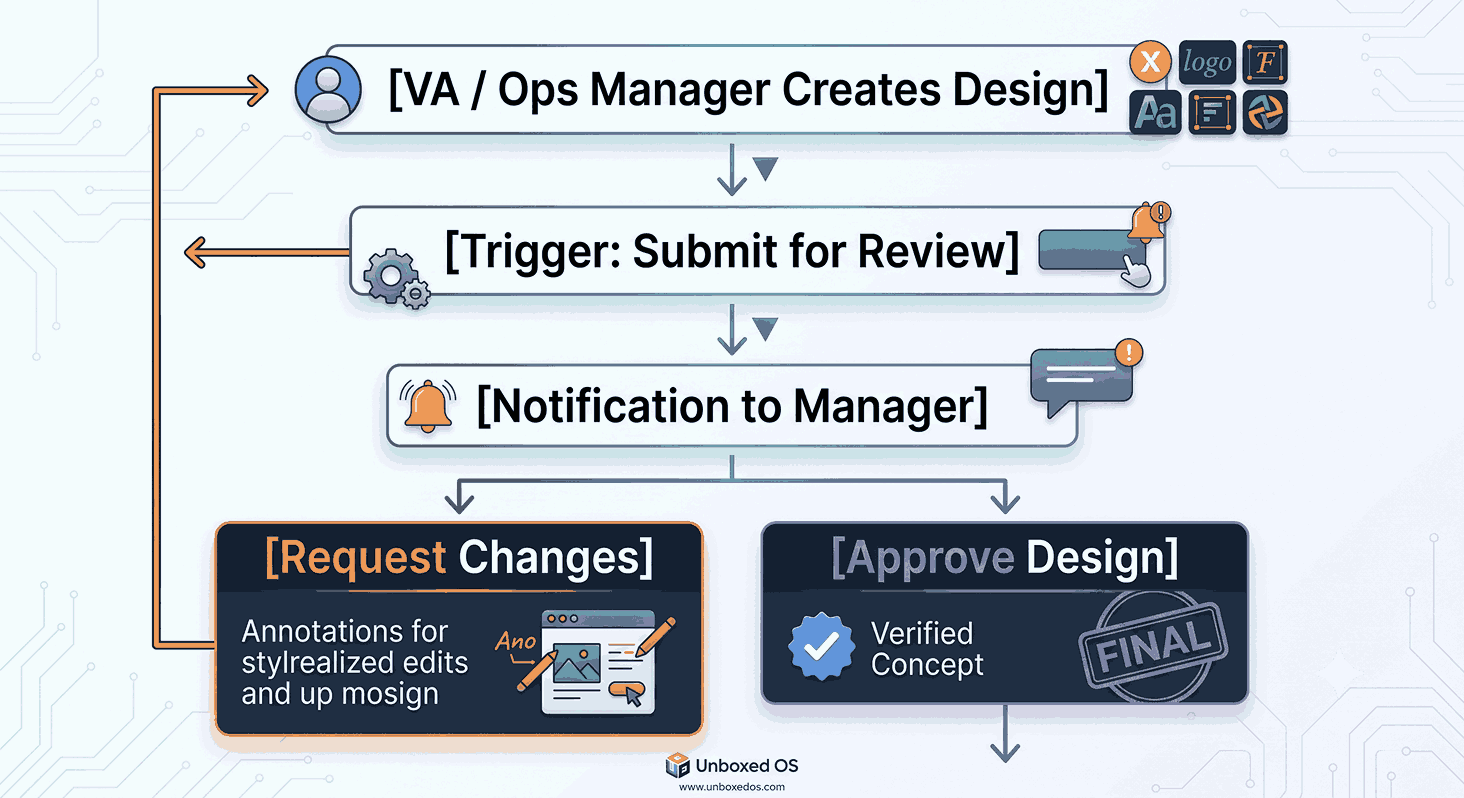
Think of this as a traditional operational routing gate. Your VA or marketing manager logs in to the shared workspace, pulls from a template, and builds a brand graphic, a proposal slide deck, or a social media asset.
Under a standard, unmanaged account, the VA could immediately download that asset and publish it. Under an Approval Workflow, the process shifts:
-
The Submission Gate: The "Download" or "Publish" button is functionally restricted for the creator. Instead, they must click "Submit for Approval."
-
The Routing Protocol: The design is dynamically routed to you (the business owner) or a designated creative director.
-
The Review Phase: Inside the Canva dashboard, you are presented with explicit options: Approve or Request Changes. If changes are requested, you leave contextual annotations directly on the canvas, sending it back to the VA’s queue.
-
The Lock Mechanism: Only when the reviewer hits "Approve" does the asset clear for export. It is safely stamped as "Final."
The Multiplier Effects: Brand Controls & Centralised Asset Libraries
An approval workflow is only as good as the guardrails surrounding it. On the Canva Business Plan, this system is supercharged by two critical administrative features:
-
Airtight Brand Controls: As a business owner, you shouldn't have to spend your weekends checking if a font is a pixel off or if a hex code is correct. Canva’s brand control module allows administrators to completely lock font packages, exact colour palettes, and official logo variations. If your VA attempts to use an unapproved neon green on a corporate asset, the system actively blocks the action.
-
The Centralised Asset Library: Chaos thrives when files are scattered across personal desktops, Google Drive folders, and Slack threads. The Business Plan provides a unified repository where verified templates, high-resolution logos, and core imagery live permanently. Your team pulls from a single source of truth.
The Cost Realities
This enterprise-grade governance is not available on free or standard Pro accounts. To unlock true hierarchical approval workflows and advanced brand controls, your organisation must transition to the Canva Business Plan, which costs approximately $20/user/month.
For a scaling business with a founder and an operations manager, this represents a modest investment that pays massive dividends in protecting brand equity and preventing costly public mistakes.
Part 2: The Future Path — Canva AI 2.0 "Workflows" (The Automation Layer)
If the traditional approval workflow is about governing human behaviour, the newly rolling out Canva AI 2.0 "Workflows" suite is about eliminating human effort entirely.
As a cornerstone of modern Technology OS design, Canva’s AI 2.0 framework shifts the platform from a passive design canvas to an active, automated operations assistant. This suite is broken down into six highly ambitious components designed to eliminate information silos across your tech stack.
1. Connectors (The System Bridge)
The single biggest point of friction in administrative work is context switching—downloading a file from one app to upload it into another. Canva 2.0 Connectors serve as native API bridges linking Canva directly to your external enterprise ecosystem, including:
-
Slack & Microsoft Teams
-
Gmail & Google Workspace
-
Google Drive & Dropbox
-
Zoom
-
HubSpot & Salesforce
Instead of your team manually checking client data sheets to update a performance slide deck, Canva AI pulls metadata directly from your CRM or cloud drive to update the creative canvas natively.
2. Intelligent Scheduling (The Autopilot Engine)
Scheduling goes far beyond simple social media queuing. Canva AI 2.0 allows teams to construct conditional automation loops. You can program a rule such as: "Every Monday at 8:00 AM, read our internal team performance metrics from Slack, generate a customised weekly summary graphic, and automatically drop it into the management channel." The system runs quietly on autopilot in the background while your team focuses on high-leverage client fulfilment.
3. Automated Web Research
Need to update an investor pitch deck or a competitive analysis sheet with real-time market data? The built-in Web Research component allows the AI layer to comb the live internet, verify localised statistics, extract trends, and automatically populate tables and text boxes within your active presentations without you ever opening a browser tab.
4. Brand Intelligence Engine
Unlike standard generative AI tools that sound generic, Canva’s Brand Intelligence layer ingests your past copy, whitepapers, framework books, and tone-of-voice guidelines. When you command it to generate text or modify a layout, it crafts outputs that mimic your specific executive voice, ensuring your unique intellectual property remains cohesive.
5. Sheets AI (Data-to-Design Pipeline)
Raw data is incredibly difficult for clients or team members to digest. Sheets AI allows Canva to natively ingest complex, messy CSV or spreadsheet data. The AI instantly reads the structural matrix and transforms columns of numbers into beautiful, interactive, and highly scannable infographics and dashboards in seconds.
6. Canva Code
Built for advanced systems developers and technical operations managers, Canva Code provides an environment for injecting custom scripts and webhooks directly into Canva templates. This allows highly technical teams to build custom internal applications, proprietary design generators, or deep system integrations unique to their specific operational workflows.
Part 3: Operational Scenario Analysis — Setting Up a Virtual Assistant for Success
Let's bring this down to earth with a concrete, real-world case study based on standard operational setups we build for scaling companies.
The Problem Profile
Our founder, Rob Robertson, has created several proprietary frameworks; two examples are the Inner Trust Map, or My Inner Battery. Some years ago, he transitioned me from a VA into an Operations Manager role. The goal was for me, as the VA, to completely own the asset creation and visual documentation of these core frameworks, but Rob was terrified of losing creative alignment and structural quality.
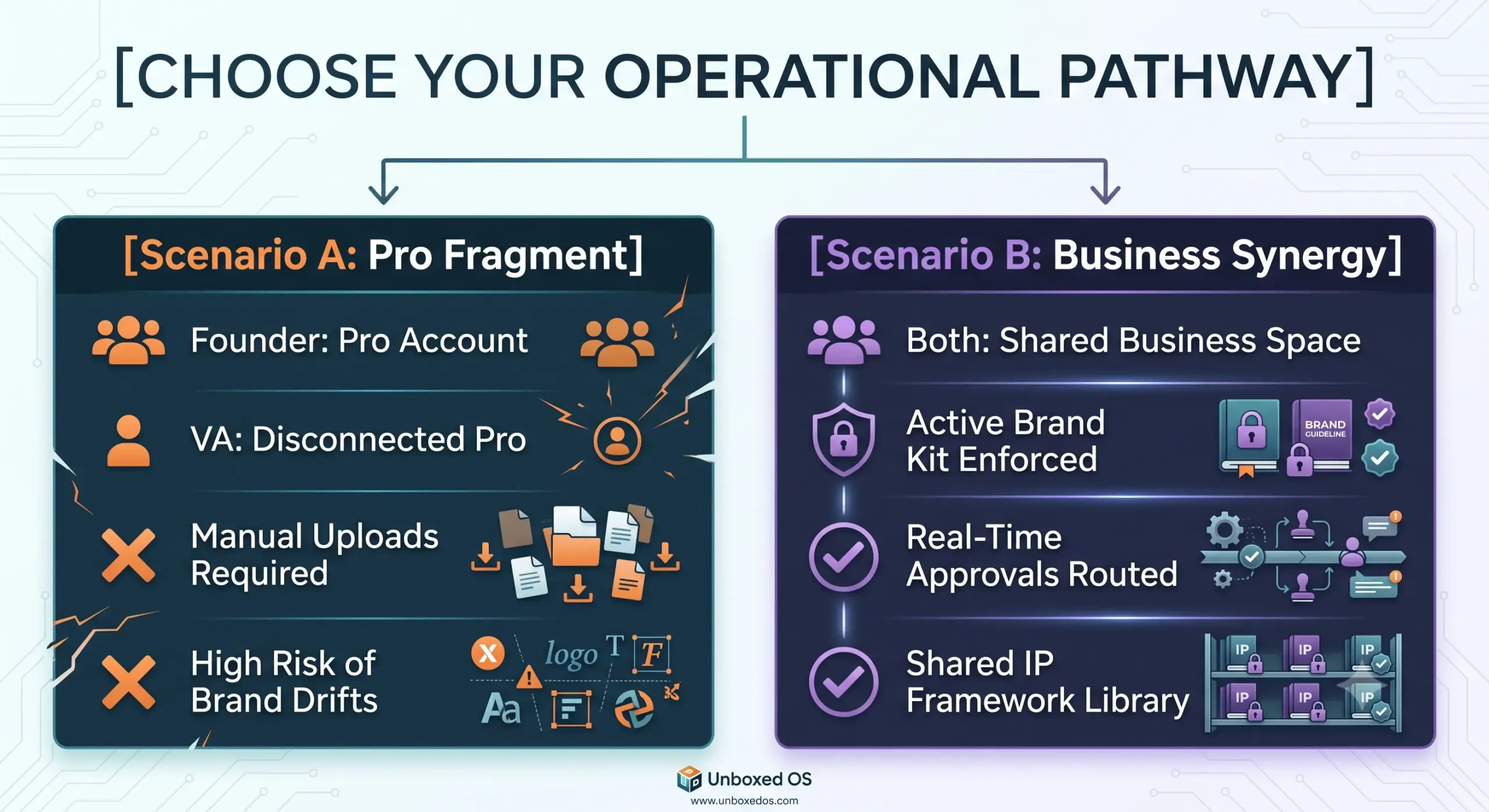
Scenario A: The Segmented Pro Trap (The High-Friction Model)
In this fractured setup, the Rob maintains a personal Canva Pro account, and as the VA I operate on a separate, disconnected Pro or Free tier.
-
The Workflow Friction: The VA must constantly request the latest high-resolution png files of the Inner Trust Model or My Inner Battery logos. If Rob updates a colour code or tweaks a framework graphic, those files must be manually sent over Slack or uploaded to a shared Google Drive folder.
-
The Review Nightmare: When the VA finishes drafting a set of operational decks, they must download them as draft PDFs, email or message them to the founder, wait for feedback, log back into Canva to make updates, and re-download them. This back-and-forth drains valuable leadership focus and stalls execution.
Scenario B: The Unified Business Space (The High-Flow Model)
In this optimized environment, both the founder and the VA step into a unified Canva Business Plan workspace.
-
Instant Resource Access: The Inner Trust Map and My Inner Battery visual assets are permanently embedded in the shared Brand Kit. The VA never has to ask for a file, font family, or hex code again; they simply open their sidebar, and the authorised components are instantly available.
-
Frictionless Guardrails: The founder establishes an operational rule: any deck created by the VA must pass an automated internal routing check. The VA builds the deck, clicks "Submit for Review," and the founder instantly receives a desktop or mobile notification.
-
The Result: The founder can review, comment, and sign off on assets in under 60 seconds from any device. The brand's intellectual property remains fully protected, and the VA feels well supported, clear, and confident in its execution.
Part 4: Comparative Architecture Matrix
To help your operations team select the exact pathway required for your current business lifecycle, review this breakdown of capabilities:
| Feature Dimension | Canva Pro (Individual Focus) | Canva Business (Governance Focus) | Canva AI 2.0 (Automation Focus) |
| Primary Structural Use | Solo asset creation and light team sharing. | Mid-to-large team asset management and governance. | System-wide automation and data-to-design integration. |
| Approval Routings | ❌ None. Manual downloading/sharing required. | ✅ Native structural approvals with manager controls. | 🔄 Trigger-based automated system notifications. |
| Brand Protection | ⚠️ Basic (Can save brand colours, but cannot lock them). | ✅ Advanced (Enforced locks on fonts, colours, logos). | ✅ Brand Intelligence (Generates text/layouts matching company voice). |
| Asset Organization | Folder sharing based on individual user permissions. | ✅ Centralised Team Libraries accessible across the entire firm. | 🤖 Smart sorting and AI-driven cross-platform asset tagging. |
| External Tech Connectors | ❌ Manual upload/download only. | ❌ Manual upload/download only. | ✅ Native automated connections to Slack, HubSpot, Sheets, and Drive. |
| Optimal Target User | Solo founders, solopreneurs, and single freelance creators. | Scaling firms with VAs, managers, and distinct oversight tiers. | Tech-forward enterprises are looking to eliminate administrative tasks via AI. |
Part 5: Step-by-Step Implementation Guide to Eradicate Your Creative Chaos
If you are ready to update your business tools and build a friction-free workspace that protects your time, follow this step-by-step operational protocol:
Step 1: Execute the Workspace Consolidation
Do not run your company across separate, fragmented personal design accounts. Upgrade your core team workspace to the Canva Business Tier. Invite your operations manager, VA, and key content creators into this singular environment.
Step 2: Establish Your Intellectual Property Brand Vault
Before allowing your team to create new materials, build out your master Brand Kit within the centralised workspace.
-
Upload every approved variation of your corporate logos.
-
Hardcode the explicit colour palettes for your proprietary frameworks (e.g., My Inner Battery, Inner Trust Model).
-
Set and lock your distinct brand fonts.
-
Toggle on "Restrict Team Access to Unapproved Colours and Fonts" inside your administrative settings panel.
Step 3: Configure Your Approval Routing Gates
Navigate to your team's permission settings and set your VA’s role to "Creator/Designer" and your role to "Administrator/Approver." Turn on structural approvals for master template folders, client-facing decks, and public promotional assets. Ensure your team understands the clear SOP: No design leaves the ecosystem until it has cleared the digital sign-off gate.
Step 4: Map Out Your Future AI Automation Triggers
As the advanced Canva AI 2.0 features roll out across your account, host an operational review with your manager. Identify your biggest time sinks. Are you manually copying data out of CRM sheets to update your slide decks? Prepare your team to connect Sheets AI and Connectors to turn those tedious, manual copy-paste cycles into seamless, self-updating data flows.
Conclusion: Upgrade Your Business Tools, Liberate Your Mind
Operational chaos is rarely caused by having the wrong people on your team; it is almost always caused by running your company on fragmented, outdated systems. Tools like Canva are infinitely more than creative sketchpads—when configured correctly, they act as core mechanisms of your company's Strategy and Technology OS.
By unifying your workspace, enforcing automated brand protections, and choosing the exact workflow mechanism that fits your team structure, you protect your valuable intellectual property, eliminate daily friction, and empower your staff to do their absolute best work.
Stop spending your precious time reviewing minor font choices and endless email attachments. Implement airtight digital guardrails, leverage modern automation, and give your business the clean, scalable structure it needs to dominate its market.
Is Your Entire Business Infrastructure in Need of an Upgrade?
If your operational systems feel just as scattered as your creative assets, you don't just need a software tutorial—you need a complete business framework upgrade. At Unboxed Operating System, we help mid-sized business owners evaluate their People, Strategy, and Technology pillars to build automated, highly productive, and scalable organisations. Book your complimentary Business Chaos Audit today, and let's build a company that runs smoothly on autopilot.